Your Free kite.space URL
When you publish, Kite gives your site a free web address that looks like <name>.kite.space. It is your site's home on the internet until you connect your own domain, and it keeps working afterwards.
How your free address works
- Every published site gets a
<name>.kite.spaceaddress. - You choose the name the first time you publish, and you can change it later.
- You can share the link right away. No setup or domain purchase required.
Choose your site domain (first publish)
- In the publish panel, find the Site Domain field.
- Type the name you want. For example, typing
northstargives younorthstar.kite.space. - Wait until you see Available, then click Publish.
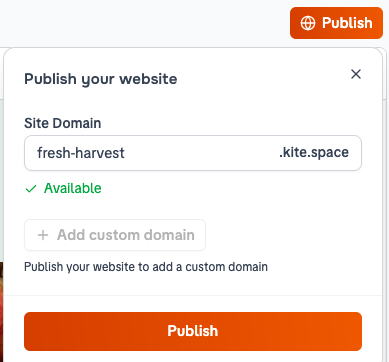
If the name is taken, try a different one. A site domain must be 3 to 63 characters, using lowercase letters, numbers, and hyphens only.
Rename your kite.space address
After your site is published, the publish panel shows your address with an Edit domain control next to it. Click it, type the new name, wait for Available, and save. The old address stops working, so update any links you have shared.
It stays as a fallback
When you connect a custom domain, your kite.space address does not go away. It stays active, so links you have already shared keep working.
If your custom domain ever has a configuration problem, your kite.space address is a handy way to confirm the site itself is fine. See Custom domain troubleshooting.
Troubleshooting
- My kite.space site looks out of date. Publish again after making an edit. See My Changes Aren't Showing on the Live Site.
- The name I want is taken. Names are unique across all Kite sites. Try a variation, or connect a custom domain for a fully branded address. See Connect a custom domain.