Connect a Custom Domain
This article shows you how to point your own domain (like yourcompany.com) at your published Kite site. You can connect a domain you already own or buy one directly through Kite.
Before you start
- Publish your site first. The Add custom domain button stays disabled until you publish. See How to publish.
- Be on Growth or Business, or in the trial. Custom domains require an active subscription. See Plans & Pricing.
- Have your domain handy if you already own one. It does not matter where you bought it. See Connect a domain from your registrar.
Open the publish panel
- Open your site in Kite.
- Click Publish in the top-right corner.
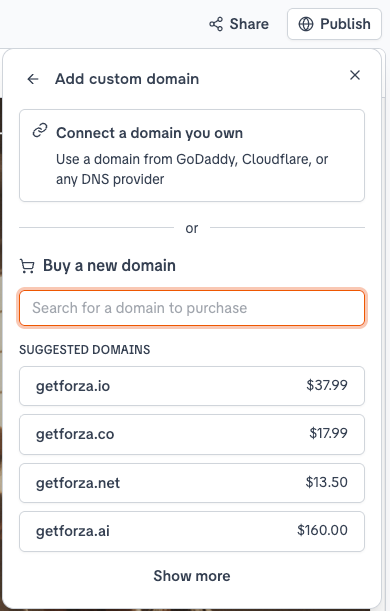
- Click Add custom domain.
If the button is grayed out, publish your site first. You will see the hint: "Publish your website to add a custom domain".
If Kite asks you to upgrade, follow the on-screen steps to choose Growth or Business.
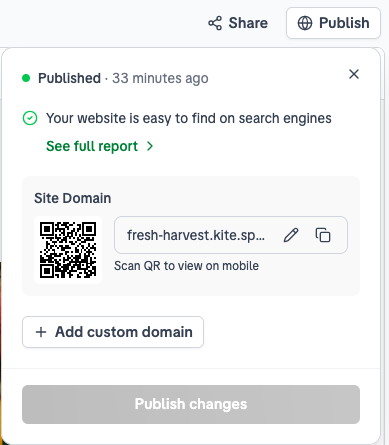
Choose how to add your domain
Kite gives you two options:
- Connect a domain you own for domains from GoDaddy, Cloudflare, or any DNS provider.
- Buy a new domain to search for and purchase a domain directly in Kite.
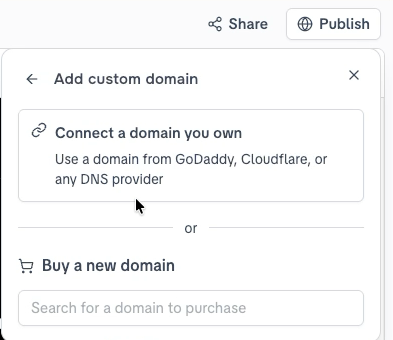
Connect a domain you own
Enter your domain
- Click Connect a domain you own.
- Type your domain name (for example,
example.com). Connecting the root domain coverswww.example.comautomatically. - Optional: check I want to use a subdomain if you want an address like
shop.example.com. If you connectwww.example.comthis way, the bareexample.comwill not work, so connect the root domain unless you have a reason not to. - Click Connect domain.
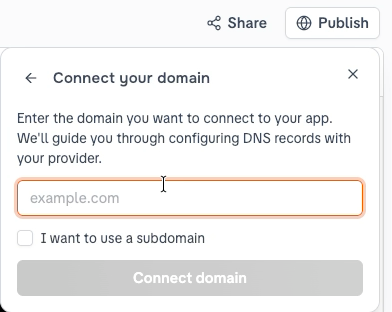
You only add a few settings at the company where you bought your domain. Kite walks you through this step by step.
Set up DNS with Entri
After you click Connect domain, the Entri modal opens. This is the service Kite uses to set up your DNS.
Entri connects to your domain provider and adds the right DNS records automatically, so you usually do not have to touch any technical settings yourself.
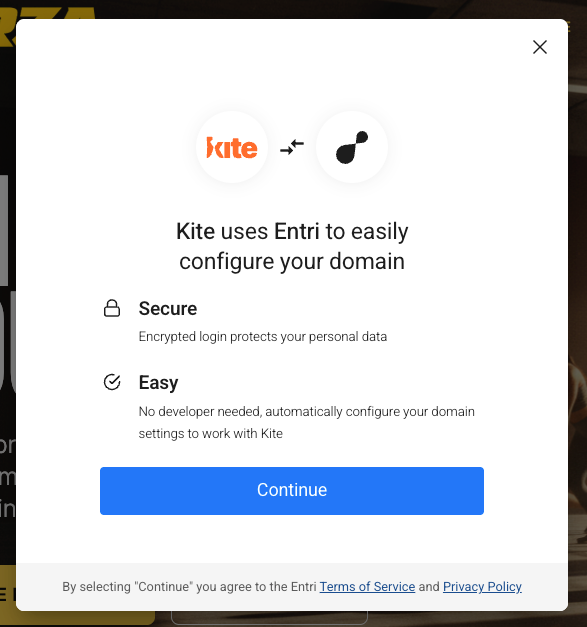
You can finish setup in one of two ways:
Method A: One-click setup with Entri (recommended)
- In the Entri modal, find and select your domain provider from the list (for example, GoDaddy, Namecheap, or Cloudflare).
- Sign in to your provider when prompted. This lets Entri add the DNS records for you.
- Confirm the changes Entri shows you and let it apply them.
- Close the modal when it reports success. Kite republishes your site for you.
Method B: Manual DNS setup
Use this if your provider is not listed in Entri, or if someone else manages your DNS.
- In the Entri modal, scroll to the end of the providers list.
- Click Go to our manual setup.
- Entri shows you all the DNS records to add. Keep this screen open.
- Add those records in your domain provider's DNS settings (see Connect a domain from your registrar for where to find them).
- Save the records at your provider.
- When you have finished at your provider, confirm in Kite.
Handing the records to someone else
- On the manual setup screen, click Forward instructions to a colleague.
- This generates a link that contains all the DNS records.
- Send that link to whoever manages your DNS.
The records you will see
The website records are always these two:
| Type | Host / Name | Value / Points to |
|---|---|---|
A | @ | 76.76.21.21 |
CNAME | www | cname.vercel-dns.com |
You will also see a few MX and TXT records. Those let Kite send email on your domain's behalf (for example, campaigns from your team's address) and, on paid plans, verify your domain with Google Search Console. They sit on their own labels and do not touch your existing mailbox. See Connecting a domain & keeping your email.
- An A record points a domain to a server's numeric address. The host
@means the root of your domain. - A CNAME record points one name at another name. Here it points
www.yourcompany.comat Kite's hosting.
Use the records that Entri shows you for your specific domain rather than copying them from here. Values can change.
Buy a domain through Kite
- Under Buy a new domain, search for the name you want.
- Pick an option marked Available and review the price and renewal cost.
- Click Confirm purchase.
Domain purchases are non-refundable. You are charged right away for the registration price and each year for renewal. Your domain is usually ready to use immediately after purchase.
After you connect
After you connect or buy a domain, Kite shows a notice while your new address spreads across the internet:
Your domain is connecting. This usually takes a few minutes but can take up to 24 hours.
- Kite republishes your site automatically once the connection succeeds.
- Try opening your domain in a browser to see if it is live.
- When setup is complete, the notice disappears and your custom domain becomes your site's main address.
Verification needed
If your domain was previously used on another hosting account, the panel shows Verification needed and a TXT record to add at your DNS provider. For a root domain, both the bare domain and www need verifying. Add the record, wait a few minutes, and the notice clears. This is the most common reason a domain seems never to connect.
Want to understand how www and the root domain work together and avoid security warnings? See www and Root Domain (and SSL).
Disconnect a custom domain
To remove a custom domain from your site, open your site's Settings and click Disconnect custom domain. Your site returns to its yoursite.kite.space address. Once a domain is connected, the Add custom domain button no longer appears in the publish panel; Settings is the only place to change it.
To move a domain to a different site, see Move, switch, or reuse a domain.
Troubleshooting
| Issue | What to do |
|---|---|
| Add custom domain is disabled | Publish your site first |
| Upgrade prompt appears | Choose Growth or Business, or see Plans & Pricing |
| Verification needed | Add the TXT record shown, for both root and www |
| Setup was cancelled | Click Connect domain and start again |
| Domain not loading after 24 hours | Check that the records at your domain provider match what Entri showed |
- Domain still shows a 404. See Troubleshoot a connected domain.
- "Domain already connected to another website." The domain is attached to a different site you still have. Disconnect it there first. See Move, switch, or reuse a domain.
- "Connection Not Private" / SSL warning. This usually clears on its own as the security certificate is issued. See www and Root Domain (and SSL).